

Modern desktops consist of many components — and understanding them is key to keeping your system running smoothly.
IMPORTANT (!) Always perform any work on your computer only when it’s completely powered off, and only if you fully understand what you’re doing.
This is an electrical device — safety first!
CPU (PROCESSOR)
Processors are generally very reliable — they rarely fail unless someone messes with them. Of course, you can fry a CPU with overheating or kill it with extreme overclocking and voltage tweaks.
But that’s rare.
More common are boot issues after an upgrade or a failed installation.
Inexperienced builders sometimes break the CPU socket pins — which brings us to the next point.
MOTHERBOARD
Motherboards are one of the most fragile parts — and they often fail. Common issues include a failing southbridge or damaged power circuits for the CPU. These problems are usually visible during a visual inspection. But if the cause isn’t obvious, don’t hesitate to consult a specialist.
Another frequent issue is a failed BIOS/UEFI update — but that’s fixable.
RAM (MEMORY)
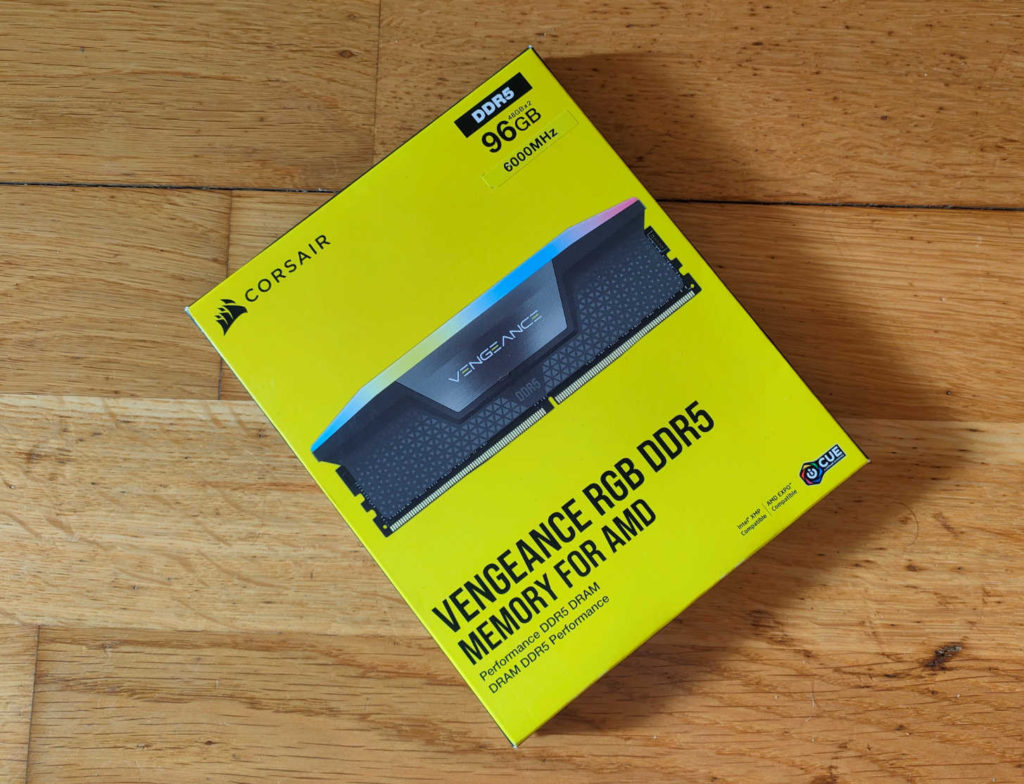
RAM problems have gotten dramatically worse with the rise of DDR4 and especially DDR5. It’s now a true nightmare.
I remember the good old days when you could just toss in any mix of DDR3 sticks — 4GB, 8GB, 2GB — from different brands, with different speeds (1333, 1600, 1866 MHz), and the system would boot instantly, running in dual-channel mode with no hassle. Just pick the right tab in BIOS — and it worked. Almost every time.
Today, DDR5 memory modules are so complex that even reading a short spec sheet can leave you stunned.
The list of requirements is long — timings, voltage, compatibility, channel configuration — the whole thing is a minefield.
DDR5 — concise technical table
| Category | Description |
|---|---|
| Frequency | JEDEC 4800–5600 MT/s • OC profiles 6000–8400+ MT/s |
| Channel architecture | 1 DIMM = 2×32-bit subchannels |
| System channeling | Dual Channel = 2 DIMMs |
| Rank | Single Rank (SR) / Dual Rank (DR) |
| Primary timings | CL / tRCD / tRP / tRAS |
| Secondary timings | tRC, tRRD_S/L, tFAW, tWTR_S/L, tWR |
| Critical timing | tRFC (very large on DDR5) |
| Command | Command Rate (1T / 2T) |
| Voltages | VDD / VDDQ / VDD2 / VIN |
| PMIC | On-module power management, locked or unlocked |
| ECC | On-die ECC (not OS-visible) |
| Memory training | POST-time training, longer than DDR4 |
So if you’re working with large amounts of DDR4 or DDR5 RAM in multi-channel configurations, you’re better off consulting a professional.
At home, you can try troubleshooting by removing RAM sticks one by one, or testing a known-working module in slot A2.
But don’t expect miracles — modern RAM is not forgiving.
STORAGE DEVICES
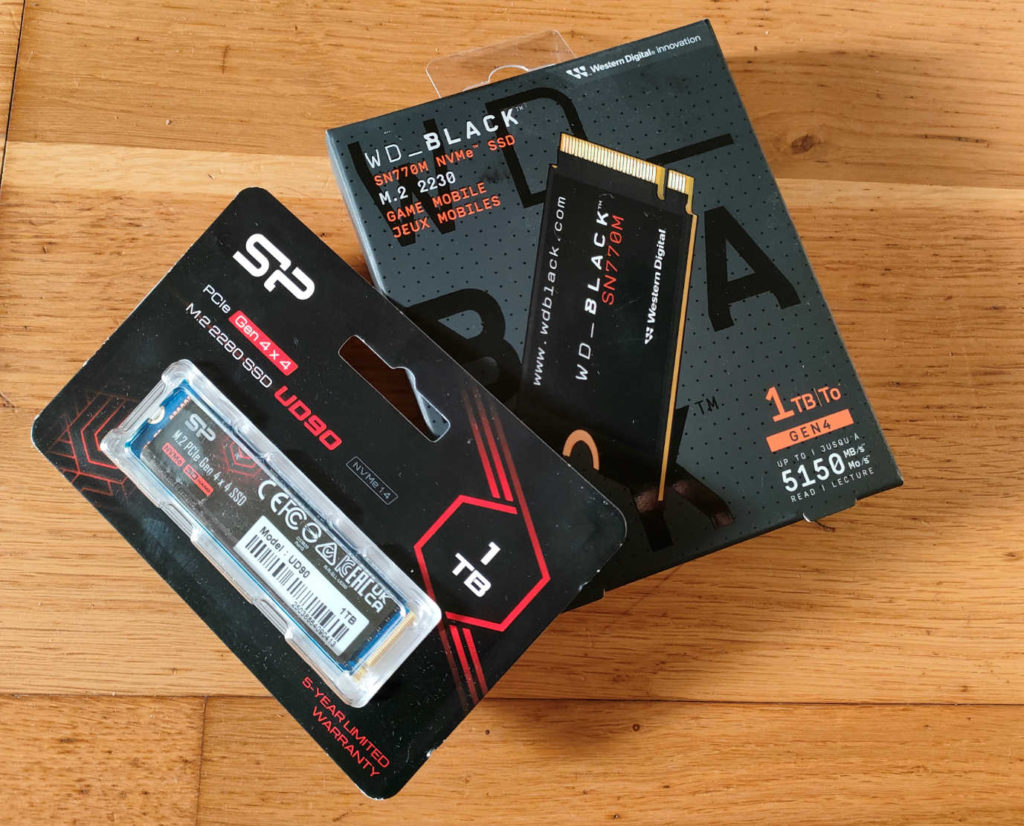
It used to be simple: just hard drives — HDDs. Today, the range of storage is much broader: internal SATA SSDs, M.2 NVMe drives, and a huge variety of external storage devices.
In most cases, if a drive fails and you don’t have critical data on it, the solution is simply replacing the faulty device. HDDs are often recoverable — if you act quickly.
Sometimes, however, the issue isn’t the drive itself, but a lost boot record or a messed-up boot order.
You can check your storage devices with tools like HD Tune or similar utilities.
But whatever you do — don’t forget to back up your data!
If your operating system is unstable — crashing, freezing, or restarting randomly — the culprit might actually be a failing drive where Windows or Linux is installed.
In such cases, testing the drive is highly recommended.
THE MIGHTY VIDEO CARD
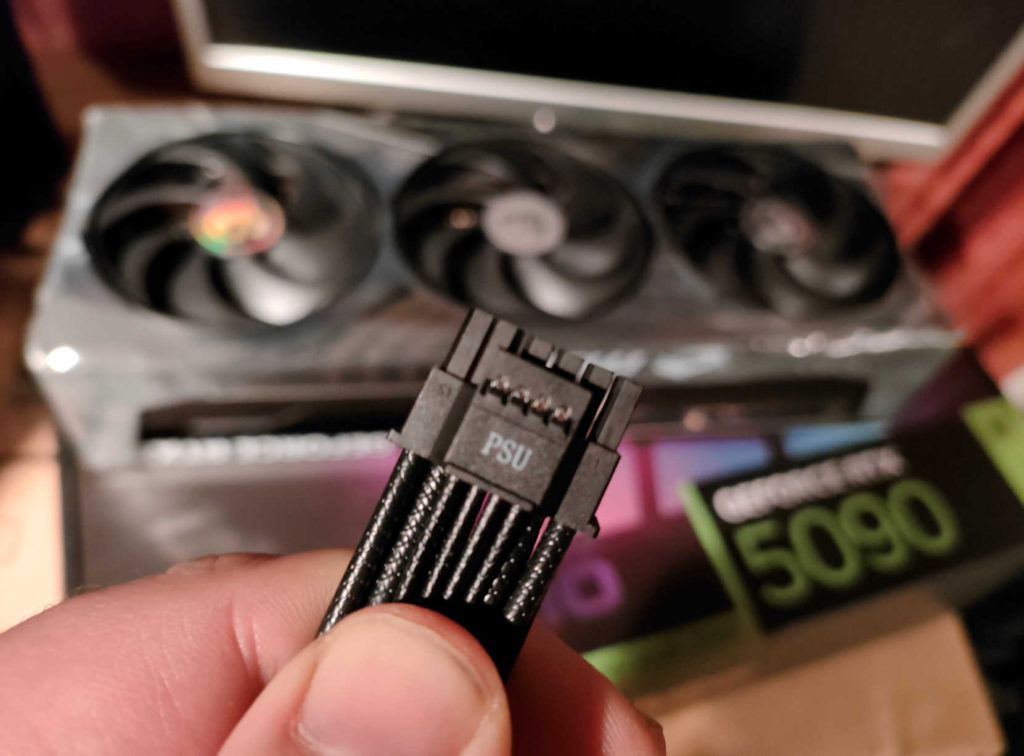
Let’s be honest — there’s no other way to put it: video card prices are absolutely insane due to the AI boom. (Though RAM is even more expensive now.)
A failing GPU shows up in several ways:
- Visual artifacts on screen
- Unstable 3D performance
- Overheating
- No display at startup
It’s important to confirm whether the GPU is actually broken. For example, test it with FurMark or swap it with a known working one.
If the problem isn’t heat or a faulty power supply, repairing a graphics card is beyond the reach of most users.
No need to go further — just replace it.
POWER SUPPLY UNIT (PSU)
First, it must be powerful enough. Even 1000W might not be enough if you have an RTX 5090 and a top-tier Intel CPU.
Second, it must have the right cables. Problems often arise at connection points — especially when cables are bent, loose, or improperly secured.
Third, adapters are a major source of issues. This is especially true for 6-pin or 8-pin connectors — if they’re on the same circuit as your HDD, which is highly sensitive to power fluctuations.
Even worse — the new 12VHPWR (PCIe 5.0) or 12V-2×6 (PCIe 5.1) connectors for high-end GPUs are poorly designed and prone to failure.
Also, the PSU should be clean, free of dust, and have a healthy fan. If it’s old or you suspect any issues — it’s best to replace it.
Because a faulty power supply can bring down your entire system — and take your data with it — permanently.
OTHER CAUSES OF PC FAILURE
Common culprits include malware infections, software crashes, hardware compatibility issues, BIOS or boot problems.
In other words, many of these issues don’t involve direct hardware damage. But they still require technical know-how to fix.
And the worst part? Often, finding the root cause is much harder than fixing it.
On the bright side — in most cases, the problem can be resolved remotely using tools like TeamViewer or AnyDesk, without needing to take your PC anywhere.

 Russian
  English