

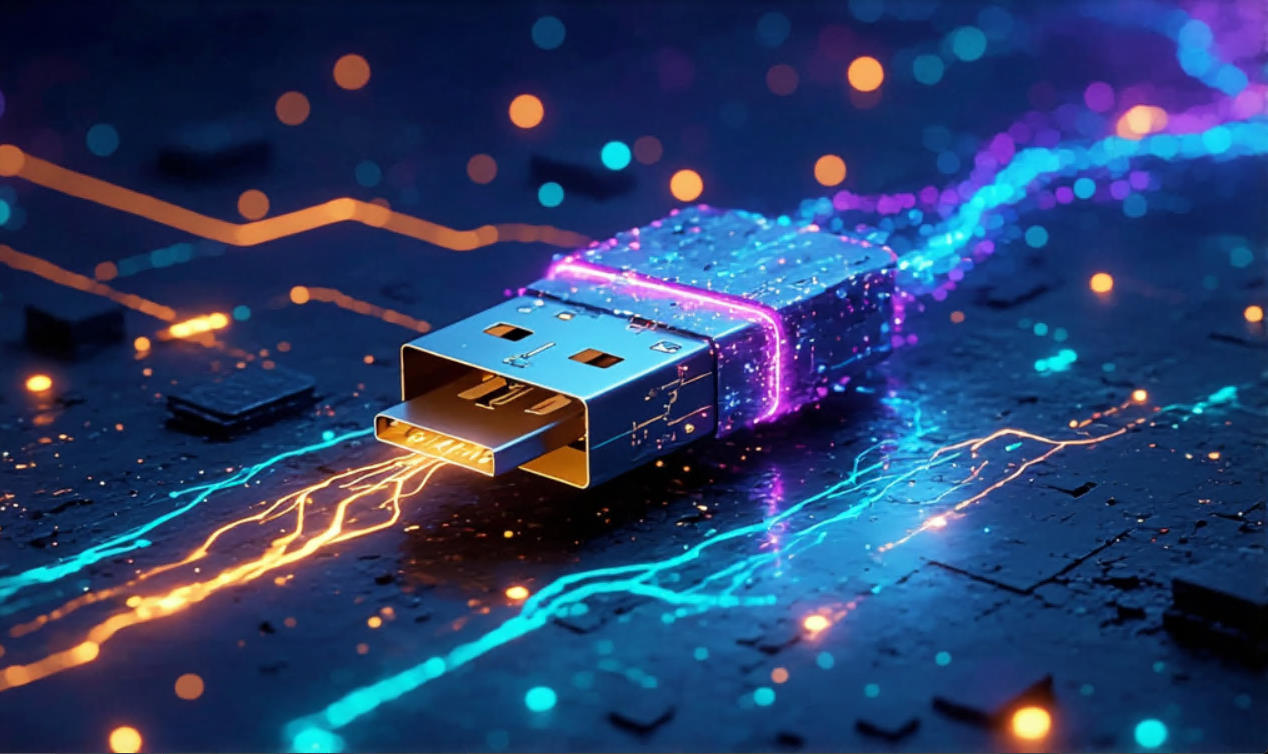
What is the data transfer speed of USB?
A very important question arises: which USB port should you plug your device into, and does it really matter?
First, let’s clear up some confusion about Mbps vs. MB. A byte consists of 8 bits, so don’t mix them up! File sizes are measured in bytes, not bits. A bit is just a 0 or 1.
Talking about USB 1.0 doesn’t make much sense anymore—it’s hopelessly outdated, and you’re unlikely to find any device using it.
For USB 2.0, this is still the go-to port for devices that don’t demand high speed or power, or that require guaranteed stability and compatibility. Think keyboards, mice, and not-so-fast external drives. However, a USB 2.0 port typically cannot supply more than about 3W and limits data transfer to roughly 60 MB/s. Not bad, actually!
USB 3.0 ports can provide 5W or more and deliver fast data transfer above 600 MB/s, which works well for most HDDs and many SSDs. But USB 3.0 and higher can sometimes have driver or compatibility issues, so it’s not ideal for things like Wi-Fi adapters or wireless mice.
USB 3.1 and 3.2 promise speeds of 1.2–2.5 GB/s, making them perfect for fast SSDs.
Looking ahead, USB 4.0 is coming, with speeds up to 40 Gbps (≈5 GB/s), which is blazing fast!
So, always pay attention to the type and color of the USB port, and what speed and power it can actually provide.
| USB Type | Color (Plastic) | Max Power | Max Speed | Best Use |
|---|---|---|---|---|
| USB 2.0 | Black | ~3 W | 60 MB/s | Keyboards, mice, slow external drives |
| USB 3.0 | Blue | 5 W+ | 600 MB/s | HDDs, many SSDs |
| USB 3.1 / 3.2 | Turquoise / Green | 5–7 W | 1.2–2.5 GB/s | Fast SSDs |
| USB 4.0 | Varies | 7–15 W | <<5 GB/s | High-speed storage |

 English
  Russian